Connecting Audio hijack to Shoutcheap
Download Audio Hijack
- Runs on Windows: No
- Runs on Mac OS X: Yes (MacOS 10.10 or higher)
- Runs on Linux: No
- Full Version Price: $59
- Demo: Noise is overlaid on all broadcasts longer than 10 minutes.
- Developer: Rogue Amoeba
- Website: https://rogueamoeba.com/audiohijack/
Once you have Audio hijack installed
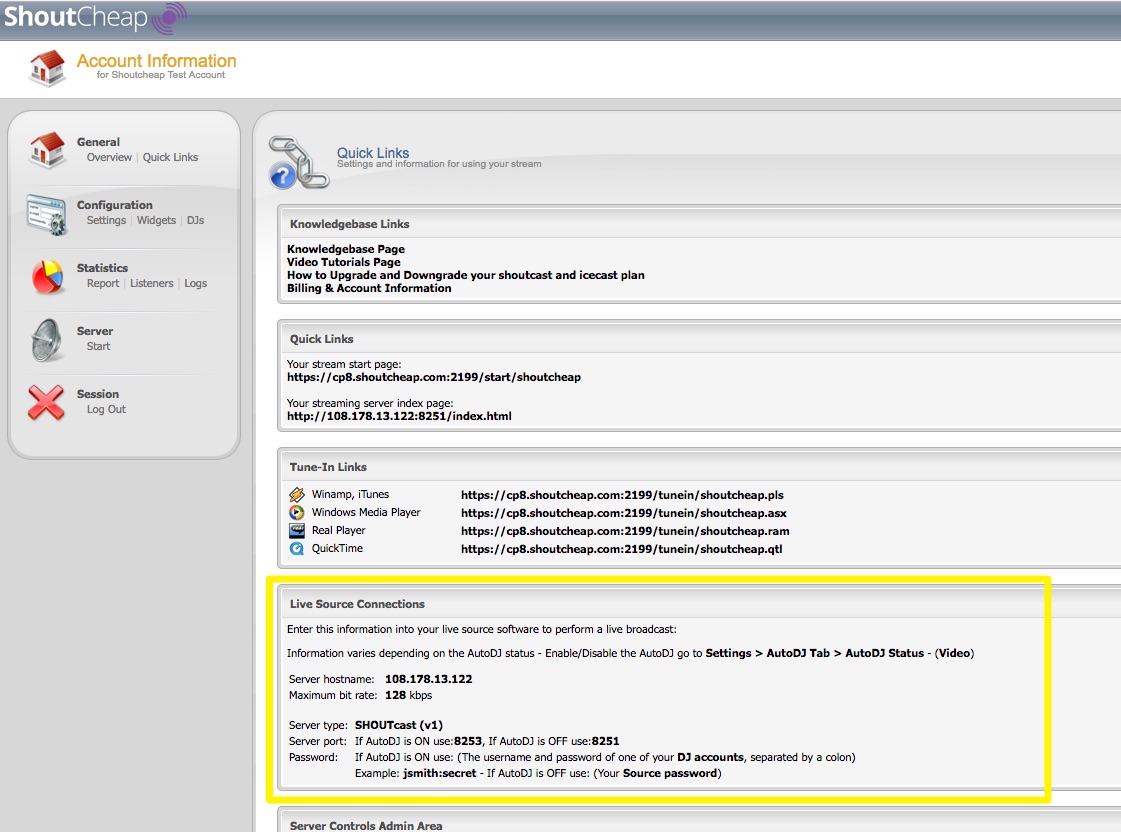
Go to your Shoutcheap Control panel > Quick Links > Live Source Connections
Copy your Server hostname, Server hostname, Server type, Server port and Password.
NOTE: Your porn number and password will varied depending from your control Panel AutoDJ status (enabled ot disabled)
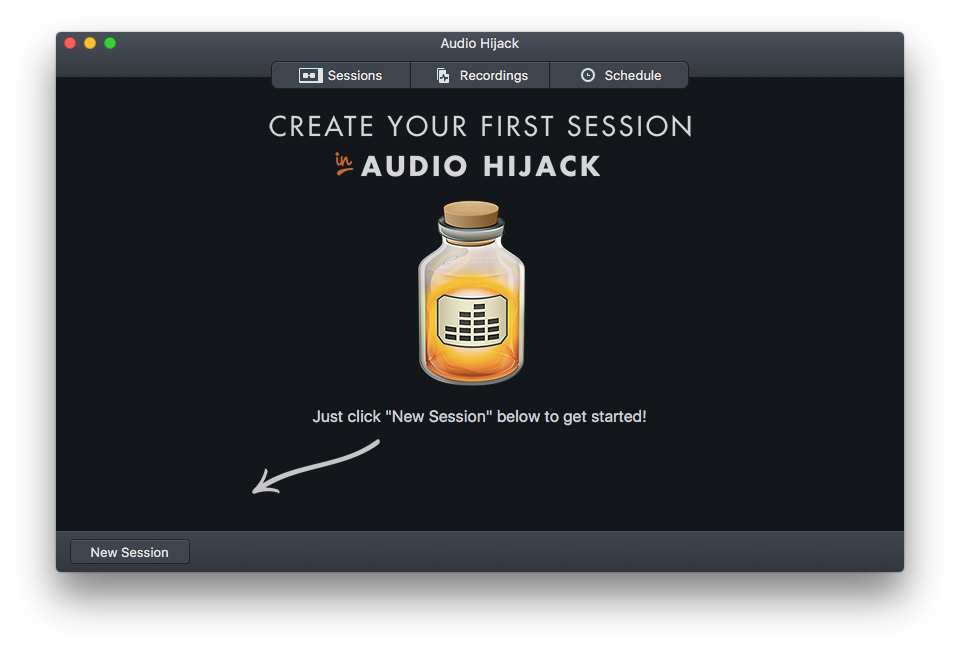
1- Launch Audio hijack
2- Select New Session
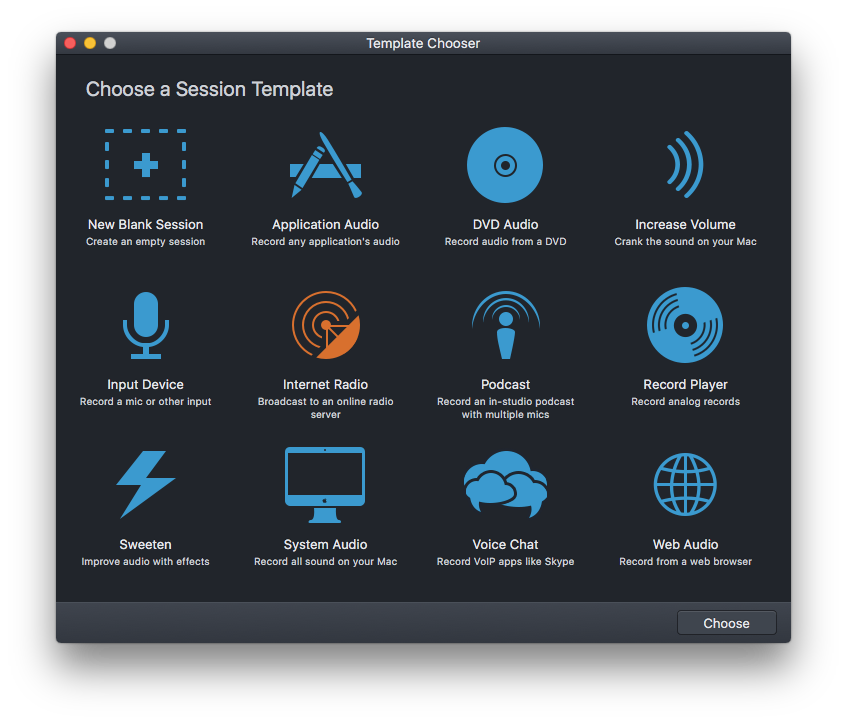
3- Select the Internet Radio Themplate
As you see audio hijack just loaded all you need for a quick start.
4- Select the Application Block to select the desired application that you want Audio Hijack to pick the sound from.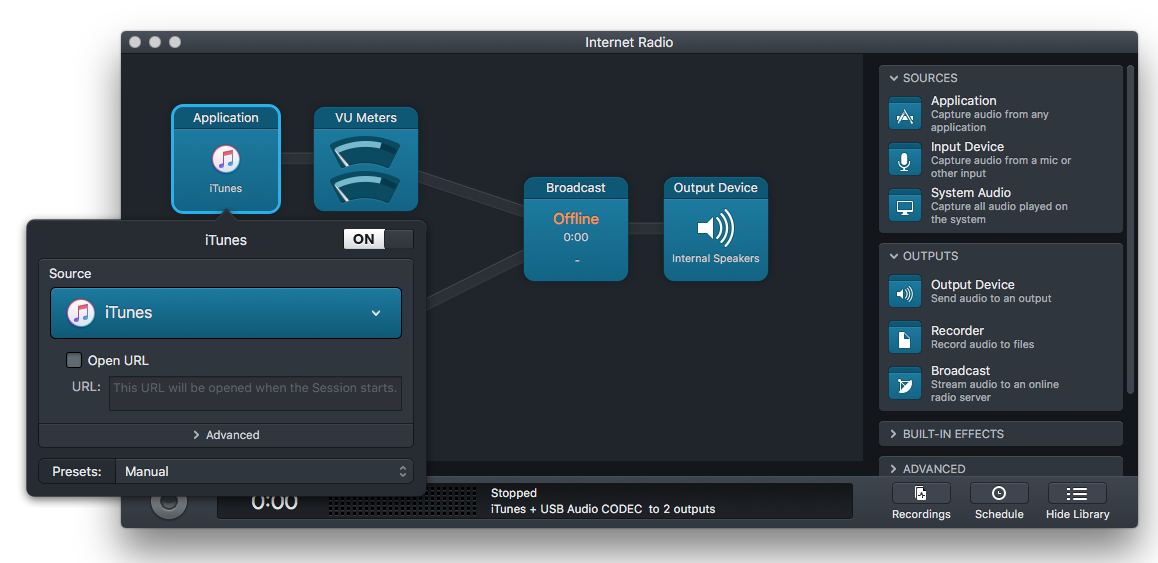
5- Select the Input Device Block to select the microphone, if you do not want to just one simple turn off that block.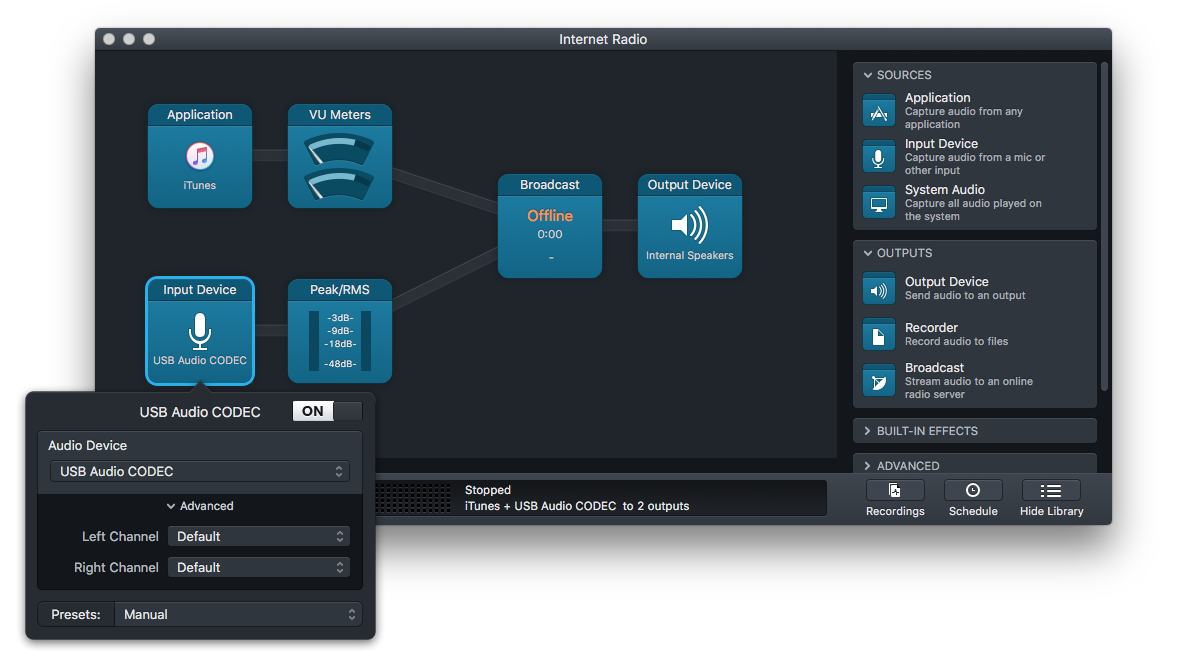
6- Select the Broadcast Block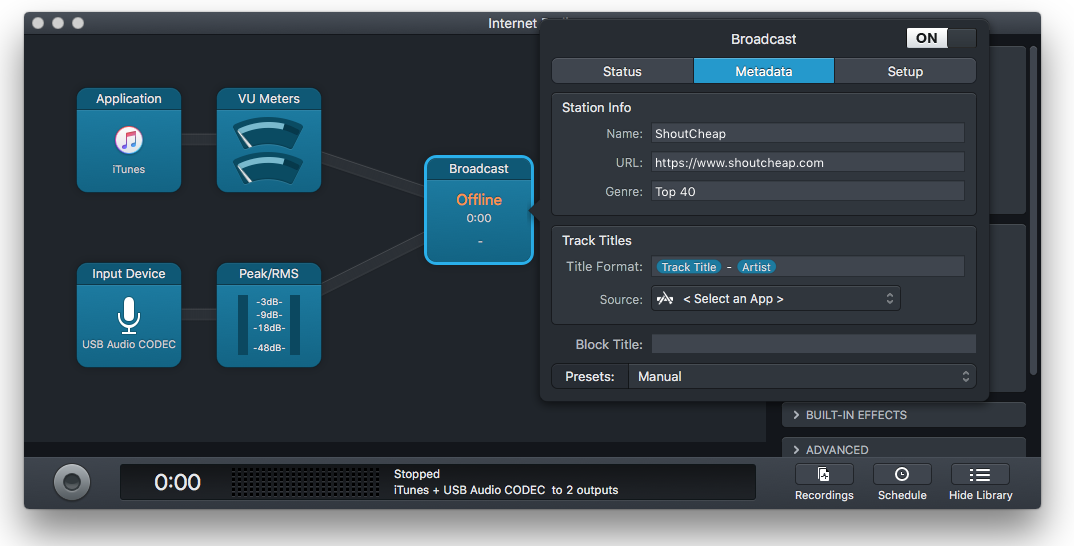
7- Click the Metadata Tab and enter your station details.
8- Click the Setup Tab and enter your Shoutcheap Live Source Connections information.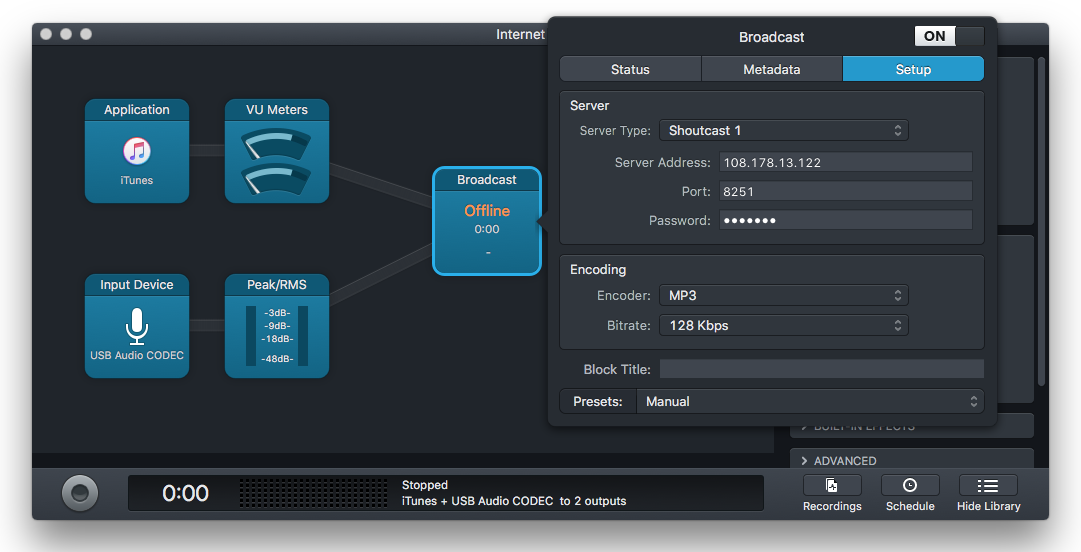
9- When you are ready to broadcast simply select the button on the lower left corner.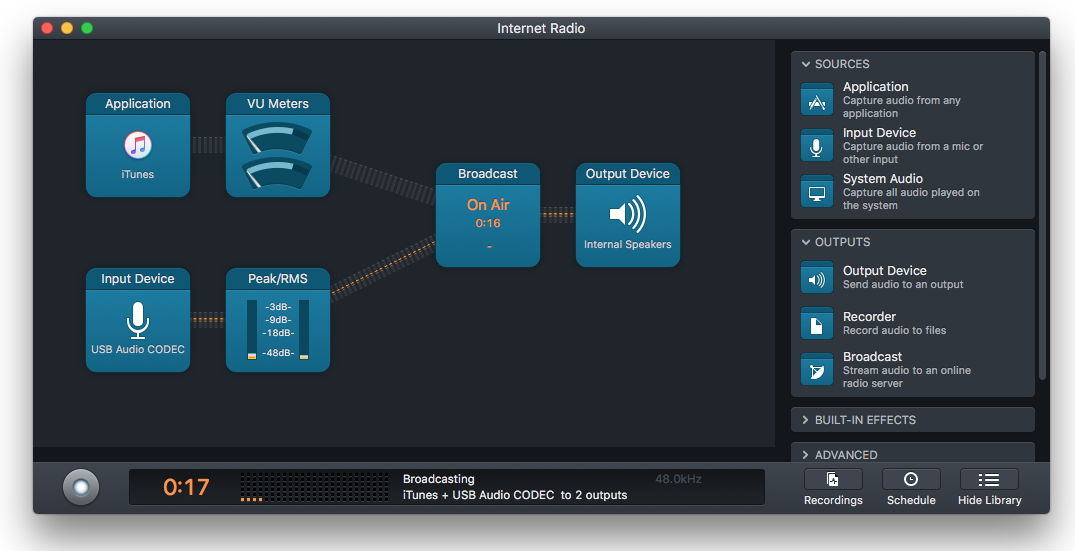
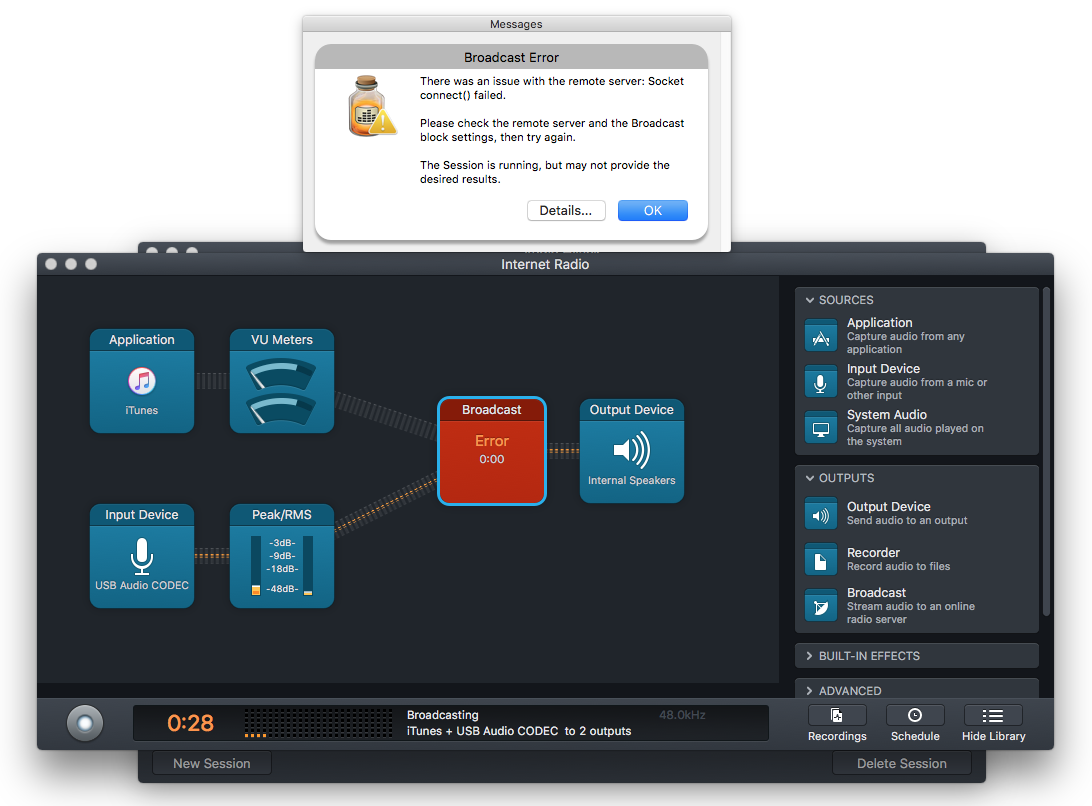
NOTE: If you get this error, go to your Shoutcheap Control Panel and verify that your account is running (Start Mode)